This post is part of a three-part series: #1, #2, #3.
These notes are a blend of personal experience, lessons gathered over the years, and insights from Efficient Linux at the Command Line (2022) by Daniel J. Barrett.
Although much of the source material focuses on Linux, I'll be applying and adapting it to macOS.
The shell
A shell is a program that interprets and executes user commands.
It can run in different modes:
- interactive mode = the shell acts as a user interface and waits for user input
- non-interactive = the shell does not wait for user input, it runs commands from a file or another program
In interactive mode, the shell behaves like a REPL:
- Read: read a command from
stdin - Eval: evaluate and run it
- Print: show the output
- Loop: wait for the next command
The term shell comes from a metaphor used in early Unix design in the 1970s:
- the OS is a nut or a seed
- the kernel is the core of the system, which users do not interact with directly
- the shell is the outer layer that users interact with, acting as an interface to the kernel
This metaphor can be a bit oversimplified. The shell is not actually a layer surrounding the kernel, but a user-space program that interacts with it. A more useful way to think about the shell is in the context of the overall system architecture:
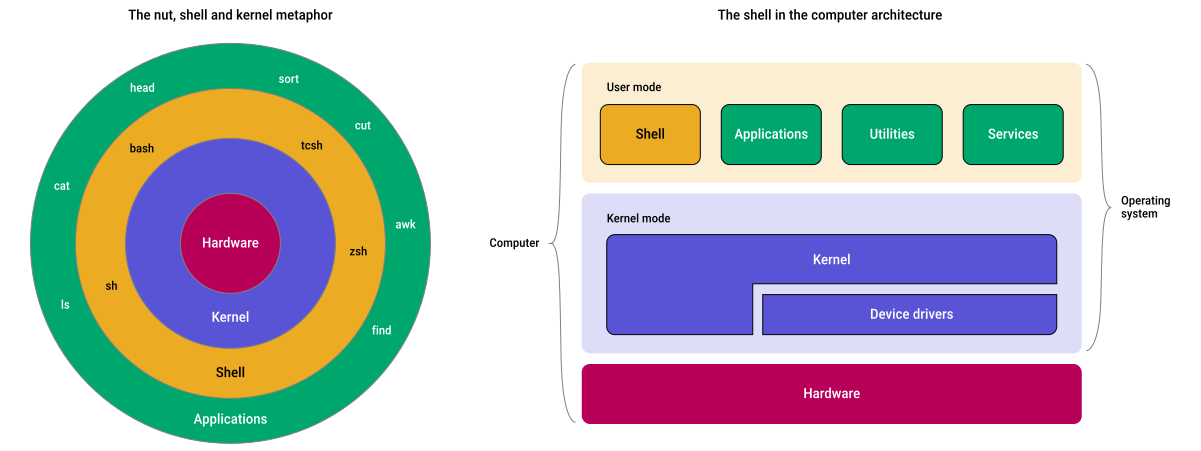
Every time a command runs:
- some steps are handled by the shell (parsing, expansion, redirections)
- some steps are handled by the invoked program (such as
ls)
Valid shells: cat /etc/shells.
Current shell: echo $SHELL.
bash and macOS
These notes assume bash as the shell.
I still use it out of habit, even though macOS switched its default shell to zsh with Catalina (2019), presumably because newer versions of bash use the GPLv3 license.
Since bash is just a program, you can run it manually:
bash
macOS differs from typical Linux distributions and does not include all GNU utilities by default, so command and options may differ (e.g., man date).
You can install the GNU core utilities from MacPorts. After installation, GNU date will be available as gdate.
Bash uses GNU Readline to handle interactive input and key bindings. The Meta key (usually Esc) is used by Readline to provide shortcuts.
On macOS, you can map Option to Meta in Terminal:
Terminal > Preferences > Profiles > Keyboard > Use "Option" as Meta key
This turns sequences like Esc-b into ⌥-b.
Note: this setting is problematic on AZERTY keyboards, where Option is needed to type characters like | (Option + Shift + L). Terminal may interpret those combinations as Meta commands instead.
To check the current command-line editing mode:
bind -V | grep editing-mode
To switch modes:
set -o vi
set -o emacs  # Default.
For more details on Emacs-style editing:
What happens when you enter ls in the shell?
A simplified mental model:
- the shell reads input and performs parsing (globbing, variable expansion, etc.) to generate a command + arguments
- the shell determines what
lsrefers to:- alias?
- shell builtin? (
echo,alias, etc.) - function? (defined by the user)
- otherwise search for an executable
- the shell creates a child process (typically using a syscall like
fork()) - the child process replaces itself with the
lsprogram (typically usingexecve()) lsruns, using libraries functions (likeopendir()), which invoke syscallslswrites output tostdout(file descriptor 1)stdoutis connected to something (the terminal, a pipe, or a file) that handles displaying or storing the output- note: the terminal is not the shell, you can swap shells without changing the terminal
- the child process exits with a status code (
0on success), which is collected by the shell
Parsing
Pattern matching (globbing)
The shell can match multiple filenames using patterns:
- often called wildcards
- more precisely called pattern matching or globbing
Examples:
grep search_string file_name*          # Ending with zero or more characters.
grep search_string file_name?          # Ending with any single character (except a leading dot).
grep search_string file_name??         # Ending with two characters.
grep search_string file_name[12345]    # Ending with a single character from a set.
grep search_string file_name[1-5]      # Ending with a single character from a range.
grep search_string file_name*[02468]   # Ending in an even digit.
Patterns are valid almost anywhere:
ls -1 /etc/*.conf
Important: the shell performs the pattern matching, not the invoked program.
Variables
Some variables like HOME and USER are predefined by the shell:
printenv HOME
printenv USER
To define custom variables, don't use spaces around =, otherwise the shell assumes that the first word is a program to run:
work=$HOME/work/

work = $HOME/work/  # Fails.
Use $ to evaluate a variable:
ls $work
Important behavior when running echo:
echo $HOME
- the shell evaluates
$HOME - then runs
echowith the result
Disabling evaluation with quotes and escapes
Prevent the shell from interpreting characters:
| Option | Example | The shell |
|---|---|---|
| Single quotes | cat 'file name.txt' |
Treats everything literally. |
| Double quotes | cat "File in $HOME" |
Allows $ and some expansions. |
Backslash (\) |
cat file\ name.txt |
Escapes one character (works within double quotes, but not in single quotes). |
Final backslashes are great for making pipelines more readable. Used in this way, the backslash is called a line continuation character:
cut -f1 grades \
| sort \
| uniq -c \
| sort -nr \
| head -n1 \
| cut -c9
Locating programs to be run
Search path
The shell searches for commands in the search path:
- an in-memory list of directories
- stored in the variable
PATH - searched from first to last entry
- stops at first match
- aliases take precedence
Directories are separated by colons (:):
echo $PATH
For a clearer view:
echo $PATH | tr : "\n"
Find how a command is resolved:
which ls
type ls    # Also locates aliases, functions and shell builtins.
Aliases
Aliases are shortcuts for commands:
alias g=grep        # A command with no arguments.
alias ll="ls -l"    # A command with arguments: quotes are required.
Aliases take precedence over commands of the same name. Shadowing a command is defining an alias for an existing command.
A leading backslash ignores aliases:
\less myfile # Ignore any alias named `less`.
Inspect aliases:
alias       # all
alias cafe  # specific
Parent and child processes
A running program is a process.
When a process starts another process:
- the invoking process is the parent process
- the invoked process is its child process
Every command creates a child process with its own copied environment.
Example:
ls
- runs inside a new child process
- gets a copy of its parent's environment
Important consequences:
- a child process can change its own state
- but cannot affect the parent shell
To understand that:
# Create a shell script called `cdtest`:

#!/bin/bash
cd /etc
echo "Here is my current directory"
pwd

# Then run:

chmod +x cdtest
pwd
./cdtest
pwd
- the child process can
cdanywhere - when it exits, the parent shell has not changed its current directory
- all happened in the child's copied environment
Pipelines launch one child process for each command:
ls | grep txt | wc -l
The shell environment
Every shell instance maintains variables of two types:
- local variables: exist only in the current shell
- environment variables: passed (copied) to child processes
Environment variables
Environment variables collectively form the shell's environment:
printenv | sort -i | less
- local variables do not appear in the output of
printenv
To make a local variable available to child processes, use export:
MY_VARIABLE=10
export MY_VARIABLE
- before
export: local variable - after
export: environment variable
Local variables are unexported.
Each shell has its own copy of an environment variable:
- modifying an environment variable in one shell cannot change the value in any other running shells
- modifications affect only that shell's future children
Global variables do not exist
Variables like HOME may appear global, but they are not.
They persist because:
- they are set and exported by the login shell (and all future shells are children of it)
- they may be defined in a configuration file (
.bashrc)
The export command does not create global variables. It only ensures variables are inherited by child processes.
Child shells versus subshells
A child:
- includes copies of its parent's environment variables
- but not its parent's local (unexported) variables
Shell scripts run in a child:
- they do not see unexported variables
- that's why aliases aren't available in shell scripts
- is a complete copy of its parent (it includes copies of its parent's aliases, functions, and more)
- to check if a shell instance is a subshell:
echo $BASH_SUBSHELL - to launch a command in a subshell, enclose it in parentheses (command substitutions)
Configuring your environment
When bash runs, it configures itself by reading a sequence of configuration files:
| File type | Run by | System-wide location (defined by the system administrator) | Personal file locations (in order invoked) | Notes |
|---|---|---|---|---|
| Startup | Login shells, on invocation |
|
|
|
| Initialization ("init") | Interactive shells (nonlogin), on invocation |
Depending on distro:
|
|
|
| Shell scripts, on invocation |
Set the variable BASH_ENV to the absolute path to an initialization file
(example BASH_ENV=/usr/local/etc/bashrc)
|
|||
| Cleanup | Login shells, on exit |
|
|
|
.profile vs .bash_profile:
.profile:- is read by some other shells such as Bourne shell (
/bin/sh) or Korsh shell (/bin/ksh) - can fail if handed bash-specific commands
- is read by some other shells such as Bourne shell (
.bash_profileor.bash_login:- safe for bash-specific commands
Because login shells are often hidden (e.g., GUI sessions), many users put everything in $HOME/.bashrc. But it may be worthwhile to have the startup file source the initialization file:
if [ -f "$HOME/.bashrc" ]
then
    source "$HOME/.bashrc"
    echo sourced
fi
macOS note:
- Terminal starts a login shell by default so
.bash_profileis used instead of.bashrc check whether a shell is a login shell:
shopt -q login_shell && echo 'Login shell' || echo 'Not login shell'
Reload configuration with source
Shell configuration files are read only when a shell starts.
To reload a file in the current shell:
source ~/.bash_profile

. ~/.bash_profile
.bash_profile does not require the execute bit, so chmod 666 is a good choice.
Why the source command exists?
- we could instead make
.bash_profileexecutable and run it like a shell script - but a shell script runs in a child process and wouldn't affect the parent
- so any commands in the script would not affect your intended shell but only the child
Input and output redirection
The shell controls how commands receive input and produce output.
By default, most commands read input from the keyboard and write output to the terminal:
| Stream | Name | File descriptor | Description |
|---|---|---|---|
stdin |
Standard input | 0 | The input stream comes from the keyboard. |
stdout |
Standard output | 1 | The stream of output goes to the terminal. |
stderr |
Standard error output | 2 |
The stream of errors goes to the terminal.
Commands can produce more than one stream of output. stderr is a second stream of output reserved for error messages.
|
Redirection makes it possible to change that:
| Stream | Redirection via | Example | Effect |
|---|---|---|---|
stdin |
< |
wc < animals.txt |
Redirects stdin to come from a file instead of the keyboard. |
stdout |
> |
grep Perl animals.txt > file |
Redirects stdout to file (creates or overwrites) |
stdout |
>> |
echo hi >> file |
Redirects stdout to file (appends) |
stderr |
2> |
cp bad.txt ok.txt 2> err |
Redirects stderr to err (creates or overwrites) |
stderr |
2>> |
cp bad.txt ok.txt 2>> err |
Redirects stderr to err (appends) |
| Both | &> |
cat ok.txt bad.txt &> err |
Redirects stdout + stderr to err (bash-specific) |
Combine stdin and stdout:
wc < animals.txt > result.txt
A pipe (|):
- connects the first command's
stdoutto the next command'sstdin - any command line containing pipes is called a pipeline
Cruising the filesystem
Quick navigation to a directory
cd                  # Return to your home directory.
cd $HOME/Work       # Use a shell variable.
cd ~/Work           # The tilde is shorthand for your home.
cd ~jones           # ~username goes to another user's home directory.
Alias for frequently edited files
alias rcedit='$EDITOR $HOME/.bashrc'
Using CDPATH for faster cd
$CDPATH is a colon-separated list of directories that cd searches automatically:
export CDPATH=$HOME:$HOME/Documents:$HOME/Pictures:..
$HOME→ home directory- subdirectories of
$HOME→ e.g.,Documents,Pictures ..→ the relative path for a parent directory- this empowers new
cdbehavior in every directory - no matter where you are in the filesystem, you can jump to any sibling directory (
../sibling) without typing the two dots - e.g., if in
/usr/bin,cd libmoves to/usr/libif..is in yourCDPATH
- this empowers new
This works best if all subdirectories beneath the CDPATH have unique names.
To find duplicates directories:
(ls -1 -d * && ls -1 -d */* | cut -d"/" -f2-) | sort | uniq -c | sort -nr | less | awk '$1 > 1'
Command history
Viewing history
history
history 3                   # The 3 most recent commands.
history | sort -nr | less   # Latest to earliest.
history -c                  # Clear history for the current shell.
Configure history
Set these variables:
HISTCONTROL=ignoreboth:erasedups
HISTFILE=/Users/kemar/.bash_history
HISTFILESIZE=2000
HISTSIZE=2000
Recalling commands
Use ! (bang expansion) to quickly reuse commands (history expansion):
!!            # Previous command.
sudo !!       # Runs the previous command with sudo.
!grep         # Most recent command starting with grep.
!?grep?       # Most recent command containing grep somewhere.
!1203         # Command ID.
!-3           # The command executed 3 commands ago.
!-3:p         # Printed and appended to the history, but not executed so `!!` can follow safely.
Examples for safe deletion:
ls *.txt      # Verify files.
rm !$         # Delete last argument from previous command.

ls *.o *.log  # Verify files.
rm !*         # Delete all arguments from previous command.
Quick string replacement in last command:
ls *jg        # Mistyped jg instead of jpg.
^jg^jpg       # Replace first occurrence of jg with jpg.
Searching history
Ctrl+R→ search backwardCtrl+S→ search forward
By default, Ctrl+S is used for terminal flow control (ixon) and pauses the terminal. Enable forward search by disabling flow control:
stty -ixon # Set Terminal TYpe / disable XON/xoff flow control for Input.
 Joint
Joint